
Workflow Automation 101: Understanding Nodes, Triggers, and Credentials
The Context: You open n8n. You see a “Start” node. You see a menu with 400 integrations. But you are stuck. Why? Because you haven’t learned the grammar of the language yet. Trying to build a complex bot without understanding what a “Node” is, is like trying to write a novel without understanding what a “Verb” is.
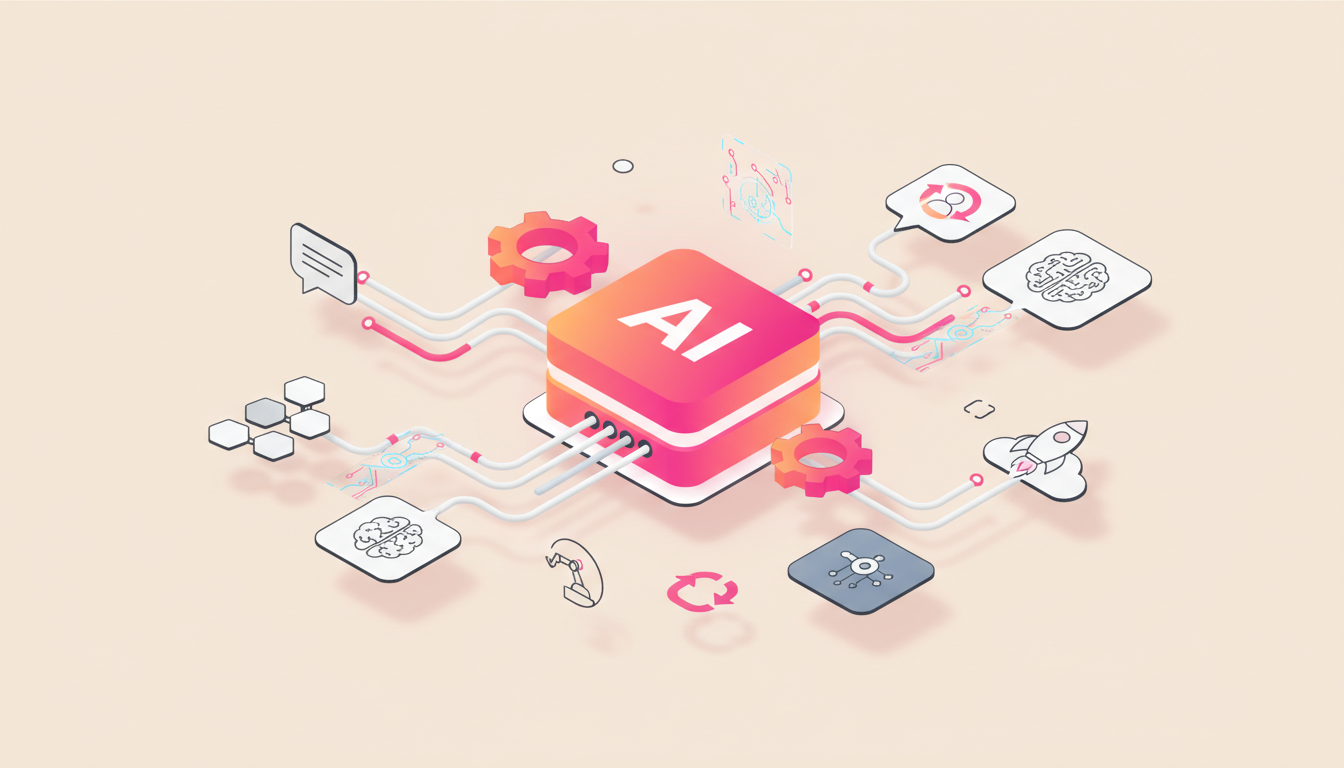
The Metaphor: To understand n8n, do not think of it as software. Think of it as a Factory.
- The Workflow: The Factory Floor.
- The Nodes: The Robots/Machines on the line.
- The Wires: The Conveyor Belts moving items between machines.
- The Data (JSON): The Raw Materials (Boxes) riding on the conveyor belts.
- The Credentials: The Security Badges the robots use to open doors (APIs).
In this guide, we will tour the factory floor and explain every piece of machinery you need to master.
Core Concept 1: The Trigger (The “Start Button”)
The Context: Passive vs Active
In a factory, nothing moves until someone hits the “ON” button. In automation, this is the Trigger. There is a fundamental misunderstanding about how triggers work. Beginners think they “Just happen”. In reality, they fall into two distinct categories: The Push and The Poll.
The Build: Identifying Your Trigger
1. The Push (Passive / Webhook)
- The Analogy: A pizza delivery guy ringing your doorbell. You don’t know when he is coming. You just wait. When he rings, you act.
- n8n Node: Webhook, Typeform Trigger, Stripe Trigger.
- Mechanism: The external app (Stripe) pushes data to n8n instantly.
- Speed: Real-time.
2. The Poll (Active / Schedule)
- The Analogy: You checking your mailbox every hour. 59 times out of 60, it is empty.
- n8n Node: Schedule Trigger, Gmail Trigger (often polling).
- Mechanism: n8n wakes up, asks the API “Anything new?”, and goes back to sleep.
- Speed: Delayed (Base on interval).
The “Pro Tip”: Hybrid Triggers
You can have multiple “Start Buttons” for one machine. You can wire a Schedule Trigger (Run every morning) AND a Manual Trigger (Run when I click) to the same workflow. This allows you to automate the daily report and force-run it manually if your boss asks for it at 3 PM.
Common Pitfalls
- The “Polling Loop” Cost: In tools like Zapier, “Polling” costs money. Every check consumes a task. In n8n Self-Hosted, polling is free. You can set a trigger to run every minute without fear of bankruptcy.
- Webhook Security: A Webhook is a public URL. Anyone on the internet can hit it. Always use “Header Authentication” or validate the payload signature to ensure the data is really coming from Stripe, not a hacker.
Core Concept 2: The Action Node (The “Worker”)
The Context: Doing the Work
Once the conveyor belt is moving, the robots need to do something to the box. These are Action Nodes. Action nodes generally do one of three things: Read, Write, or Transform.
The Build: Node Types
1. App Nodes (The Wrappers)
- Examples: “Get Slack User”, “Update Google Sheet Row”.
- Concept: These are pre-built interfaces. Instead of writing code, you fill in form fields. n8n handles the complex API calls behind the scenes.
2. Core Nodes (The Logic)
- Examples: Set, Split In Batches, Aggregate.
- Concept: These nodes manipulate the data inside the factory. For example, the Set node is like a labeling machine—it takes a box and writes “Fragile” on the side (renames a variable).
3. The Universal Node (HTTP Request)
- Concept: If n8n doesn’t have a robot for a specific task (e.g., “Post to Unfallen.AI”), you use the HTTP Request node.
- Power: This node lets you talk to any service on the internet that has an API. It is the “Universal Adapter”.
The “Pro Tip”: The Green Checkmark Illusion
Just because a node turns green (Success) doesn’t mean it worked.
It just means the API responded with “OK”.
Always open the Output Data panel.
Did it return { "status": "success" } or { "error": "False Positive" }?
Trust the JSON, not the color.
Common Pitfalls
- Forgot to Map: You added a “Slack Send” node but didn’t tell it what message to send. The robot runs, sends an empty message, and marks it as “Success”.
- Version Mismatches: Nodes have versions (v1, v2). If you use an old tutorial, the v1 node might behave differently than the v2 node on your canvas.
Core Concept 3: The Data Flow (JSON Streams)
The Context: The Conveyor Belt
This is the hardest concept for beginners. n8n does not pass “Text”. It passes Arrays of Objects (JSON). Every wire in n8n is carrying a list of items. Even if it’s just one item, it is a list of one.
The Build: The Structure
Imagine a conveyor belt carrying boxes. Each box is an Item. Inside each box, there is a standard form:
[
  {
    "json": {
      "name": "Marcus",
      "email": "marcus@unfallen.ai"
    },
    "binary": {
      "attachment_0": "..."
    }
  }
]
Why this matters:
When you map a variable, you are saying: “Robot, look inside Box 1, find the label json, look for email.”
In n8n, this expression looks like: {{ $json.email }}.
The “Pro Tip”: Pinning Data
When building, your conveyor belt is often empty because your Trigger hasn’t fired yet. Use the “Pin Data” feature. It puts a “Fake Box” on the conveyor belt forever. Now you can build the rest of the factory line using that fake box as a reference, without having to re-trigger the whole process.
Common Pitfalls
- Item Mismatch: If Node A outputs 10 items (10 boxes) and Node B expects 1 item, n8n will run Node B 10 times.
- Symptom: You sent 10 emails instead of 1 summary email.
- Fix: Use an Aggregate node to squash the 10 boxes into 1 big box before sending.
Core Concept 4: Credentials (The “Keys”)
The Context: Security
You cannot just walk into Google’s server room. You need a key. In API terms, these are Credentials. n8n separates the “Workflow” from the “Credentials”. This is brilliant because you can update your password in one place, and all 50 robots using that key update instantly.
The Build: Auth Types
1. API Keys (Header Auth)
- The Analogy: A simple passcode
1234. - Usage: You generate a key in Airtable, paste it into n8n. Simple. Sustainable.
2. OAuth2 (The Handshake)
- The Analogy: “Sign in with Google”.
- Usage: You click a button. n8n redirects you to Google. You say “Yes”. Google gives n8n a temporary token.
- Complexity: n8n handles the “Refresh Token” dance for you. It automatically asks for a new pass every hour so your automation never breaks.
The “Pro Tip”: Credential Sharing
You can share credentials between different n8n users (if you have a team).
But better yet, you can name them descriptively: OpenAI - Production vs OpenAI - Marcus Dev.
Always select the specific key for the specific environment.
Common Pitfalls
- Connection Timeout: Sometimes OAuth2 fails because you blocked cookies or popups.
- Scope Creep: When you authorize Google Drive, you have to select “Scopes” (Read vs Read/Write). If you only selected “Read”, and your bot tries to “Upload”, it will fail with a 403 Forbidden error.
Core Concept 5: Logic (The “Brain”)
The Context: Making Decisions
A linear conveyor belt is boring. A smart factory sorts boxes. “If the box is Red, go Left. If Blue, go Right.” This is Logic.
The Build: Logic Nodes
1. The If Node (The Gatekeeper)
- Function: True or False.
- Example:
Price > 100. - Visual: The wire splits into “True” (Top output) and “False” (Bottom output).
2. The Switch Node (The Sorter)
- Function: Multiple choice.
- Example: “Category is…” -> [Support, Sales, Marketing, Spam].
- Visual: The wire splits into 4 different outputs.
3. The Merge Node (The Assembly Point)
- Function: Waiting.
- Example: You branched off to do 3 parallel tasks. Now you want to send one final report. You use a Merge node to “Wait for all inputs” before continuing.
The “Pro Tip”: Human Logic (Wait Node)
Logic doesn’t have to be digital. It can be human. Use a Wait Node set to “On Webhook Call”.
- Bot sends you an email: “Approve this Invoice? [Link A] [Link B]”
- Bot Waits (Sleeps).
- You click Link A.
- Bot wakes up and sends the invoice. This keeps the human in the loop for critical decisions.
Common Pitfalls
- Infinite Loops: If you connect the end of your workflow back to the beginning to “Retry”, ensure you have a “Counter” (IF count > 5, Stop). Otherwise, your bot will run forever, burn your CPU, and crash your server.
Core Concept 6: Execution Modes (Test vs Production)
The Context: The “Phantom” Bug
A common frustration for beginners is: “It worked when I clicked Execute, but it failed when I went to sleep.” This happens because n8n has two distinct brains.
- Manual Execution (UI): Uses the data currently in your browser.
- Production Execution (Server): Uses data coming from the Trigger in the background. Understanding the difference is the key to stability.
The Build: The Two States
1. The Editor Mode (Manual)
- Visual: The UI is interactive. You can see data flowing.
- Memory: It only processes the sample data you pinned or fetched.
- Use Case: Building, Debugging, Logic Testing.
2. The Production Mode (Active)
- Visual: The UI is standard. You see nothing happening.
- Memory: It processes live webhooks or schedule events.
- Use Case: Running actual business logic.
- Logs: You can only see what happened by going to the “Executions” tab sidebar.
The “Pro Tip”: The “Save” Button
In n8n, the Production Server only knows about the version of the workflow that was Last Saved.
If you add a new node and hit “Execute” in the editor, it works.
But if you forget to hit Cmd+S, the Production Runner is still using the old version of the workflow.
- Rule: Save before you Sleep.
Common Pitfalls
- The “Test Node” Leftover: You added a “Set” node to mock some data while testing. You forgot to delete it. You activated the workflow. Now every production run is using the mock data instead of the real data.
Core Concept 7: Error Workflow (The Safety Net)
The Context: Robots Break
APIs go down. Credentials expire. Data formats change. In Zapier, if a Zap fails, it just stops. In n8n, you can build a Meta-Workflow to handle the failure. This is called an Error Workflow. It is your insurance policy against silent failures.
The Build: Creating a Safety Net
1. The Trigger (Error Trigger)
- Create a new workflow.
- Add an Error Trigger node.
- This trigger fires automatically whenever any of your other workflows fail.
2. The Action (Alert)
- Add a Slack or Email node.
- Message: “🚨 Workflow {{ $json.workflow.name }} Failed! \n Link: {{ $json.execution.url }}”
- Why: This gives you a direct link to the debug screen.
3. The Connection (Settings)
- Go back to your main workflow (e.g., “Daily Report”).
- Open Settings.
- Error Workflow: Select the “Safety Net” workflow you just created.
- Now, if “Daily Report” crashes, “Safety Net” wakes up and pages you.
The “Pro Tip”: Auto-Retry
You can also handle errors at the Node Level.
- Open any HTTP Request node.
- Go to Settings -> Retry On Fail.
- Set it to 3 Times.
- Now, if the API has a temporary blip (503 Service Unavailable), n8n will wait and try again. This fixes 90% of “Flaky” automation issues.
Common Pitfalls
- Infinite Error Loops: If your “Error Workflow” also fails (e.g., Slack is down), it might trigger itself. Ensure your Error Workflow is as simple and robust as possible.
Putting it Together: The “Factory” Walkthrough
Let’s re-examine a simple workflow: “Email to Slack”.
- Trigger (Webhook): The Delivery Truck arrives with a box (The Email).
- Logic (If Node): The Sorter checks the box. “Is the subject ‘Urgent’?”
- True: Send to Line A.
- False: Send to Trash.
- Action (Slack): Line A Robot picks up the box. It uses its Credential (Badge) to open the Slack door. It takes the text from the box (JSON) and writes it on the wall (Channel).
- Result: The conveyor belt stops. The box is processed.
Conclusion
You now speak the language.
- Node: Machine.
- Trigger: Start Button.
- Wire: Conveyor Belt.
- JSON: Box.
- Credential: Key.
Once you have this mental model, the infinite canvas isn’t scary. It’s just a floor plan waiting for you to arrange the machines.
Ready to build your first factory? Now that you understand the theory, put it into practice with our Your First 30 Minutes with n8n tutorial.