
Automate Transaction Extraction from PDFs & Images to CSV
Automatically extract and categorize financial transactions from PDFs and images, reducing manual data entry by 100% and accelerating financial analysis.
Manually extracting and categorizing financial transactions from PDFs and images is a tedious, error-prone process. This workflow leverages AI to automatically extract and categorize transaction data, converting it into organized CSV files with remarkable accuracy and speed.



Documentation
Automate Financial Data Extraction with AI
Manually extracting transaction data from bank statements in PDF or image format is a time-consuming and error-prone task. This n8n workflow provides a robust solution to automatically process these documents, extract relevant financial transactions, and categorize them into a clean, structured CSV format.
Key Features
- Automated Document Ingestion: Monitors a specified Google Drive folder for new PDF and image files, triggering the extraction process instantly.
- Intelligent File Routing: Automatically identifies whether an incoming file is a PDF or an image and directs it to the appropriate AI processing pipeline.
- Advanced PDF Text Extraction: Leverages a powerful language model (Llama via OpenRouter) to accurately read and parse complex PDF documents for transaction details.
- Cutting-edge Image OCR & Understanding: Utilizes Google Vertex AI (Gemini via LangChain) to extract text and comprehend transactional data from image-based bank statements.
- AI-Powered Transaction Categorization: Automatically assigns relevant categories to each transaction, streamlining financial analysis and budgeting.
- Structured CSV Output: Converts all extracted and categorized data into a user-friendly CSV file, ready for import into spreadsheets or accounting software.
- Automated Cloud Storage: Uploads the final categorized CSV files directly back to a designated Google Drive folder.
How It Works
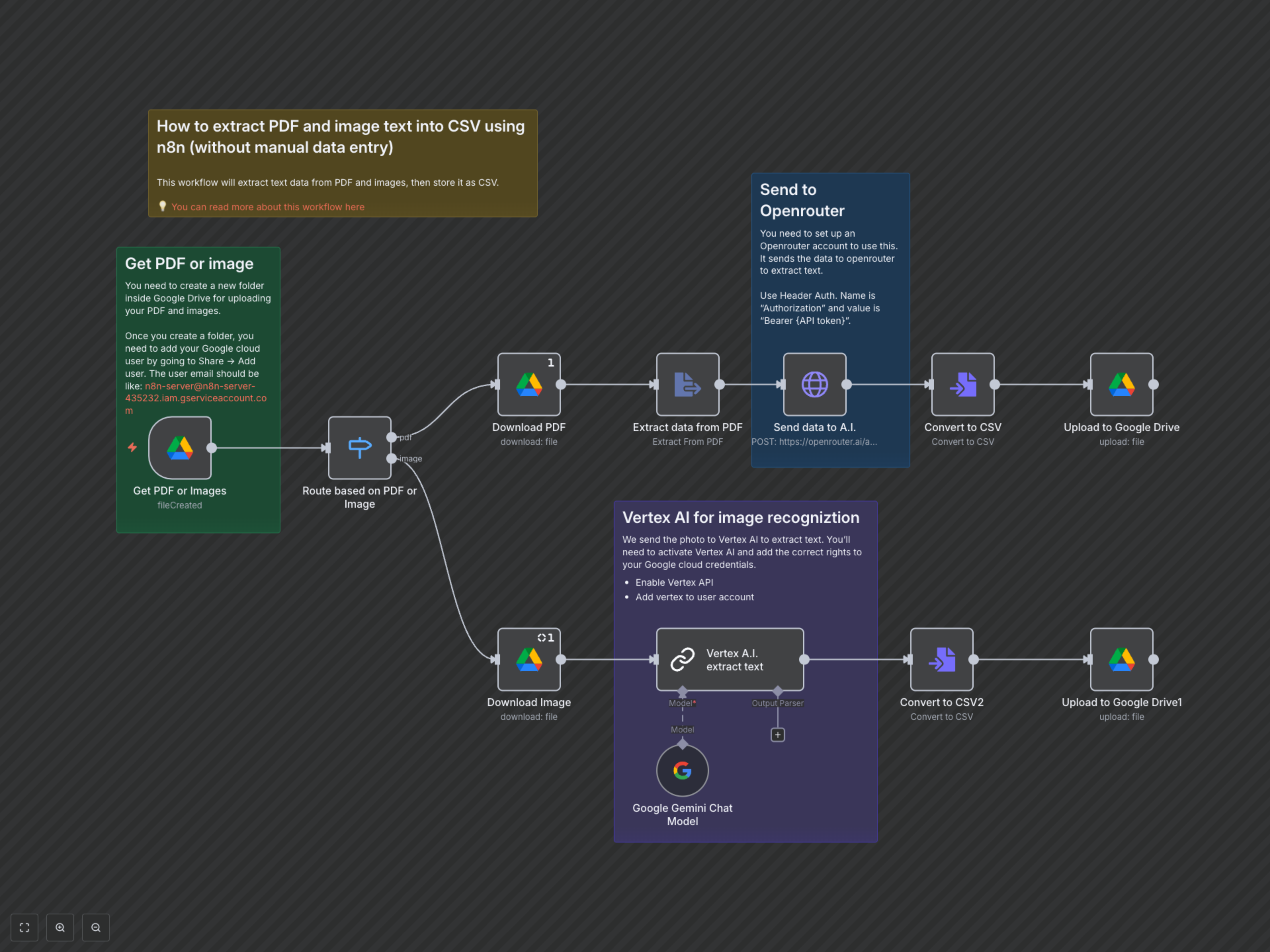
This workflow starts by continuously monitoring a specific Google Drive folder. When a new PDF or image file (like a bank statement) is uploaded:
- 1. File Detection & Routing: The Get PDF or Images node detects the new file, and the Route based on PDF or Image node determines its MIME type.
- 2. PDF Processing Path: If it's a PDF, the Download PDF node retrieves the file. The Extract data from PDF node extracts all text content, which is then sent to the Send data to A.I. (OpenRouter) node. A sophisticated prompt instructs the AI to extract all transactions, categorize them, and return the data as CSV.
- 3. Image Processing Path: If it's an image, the Download Image node retrieves it. The image is then passed to the Vertex A.I. extract text node, which leverages the Google Gemini Chat Model (configured with Vertex AI) to perform advanced OCR and extract and categorize transactions based on a detailed prompt.
- 4. CSV Conversion: The AI's CSV output from both paths is then standardized and formatted by the Convert to CSV or Convert to CSV2 nodes.
- 5. Google Drive Upload: Finally, the categorized CSV file is automatically uploaded to your designated "CSV Exports" folder in Google Drive, making your financial data instantly accessible and organized.