
Sync Clockify Time Entries to Syncro & Eliminate Manual Data Entry
Automate time entry synchronization, saving hours of manual data input weekly and ensuring real-time accurate billing for MSP clients.
Manually transferring time entries from Clockify to Syncro MSP is time-consuming, prone to errors, and delays client billing. This workflow automatically syncs Clockify time entries associated with tickets to Syncro, ensuring accurate billing and eliminating tedious data entry.



Documentation
Clockify to Syncro Time Entry Automation
This n8n workflow bridges the gap between Clockify time tracking and Syncro MSP, ensuring that all billable time logged against tickets is automatically and accurately reflected in your Syncro system. It streamlines operations for Managed Service Providers (MSPs) and businesses using both platforms.
Key Features
- Automated Time Synchronization: Effortlessly syncs new and updated Clockify time entries directly to corresponding Syncro tickets.
- Duplicate Prevention: Intelligently checks for existing Syncro timer entries via Google Sheets, preventing redundant data.
- Real-time Updates: Ensures that changes or additions to Clockify time are promptly updated in Syncro for accurate billing.
- Technician Mapping: Automatically matches Clockify users to their respective Syncro technician IDs for correct attribution.
- Ticket-Specific Processing: Focuses only on time entries linked to "Ticket" projects in Clockify, maintaining data relevance.
How It Works
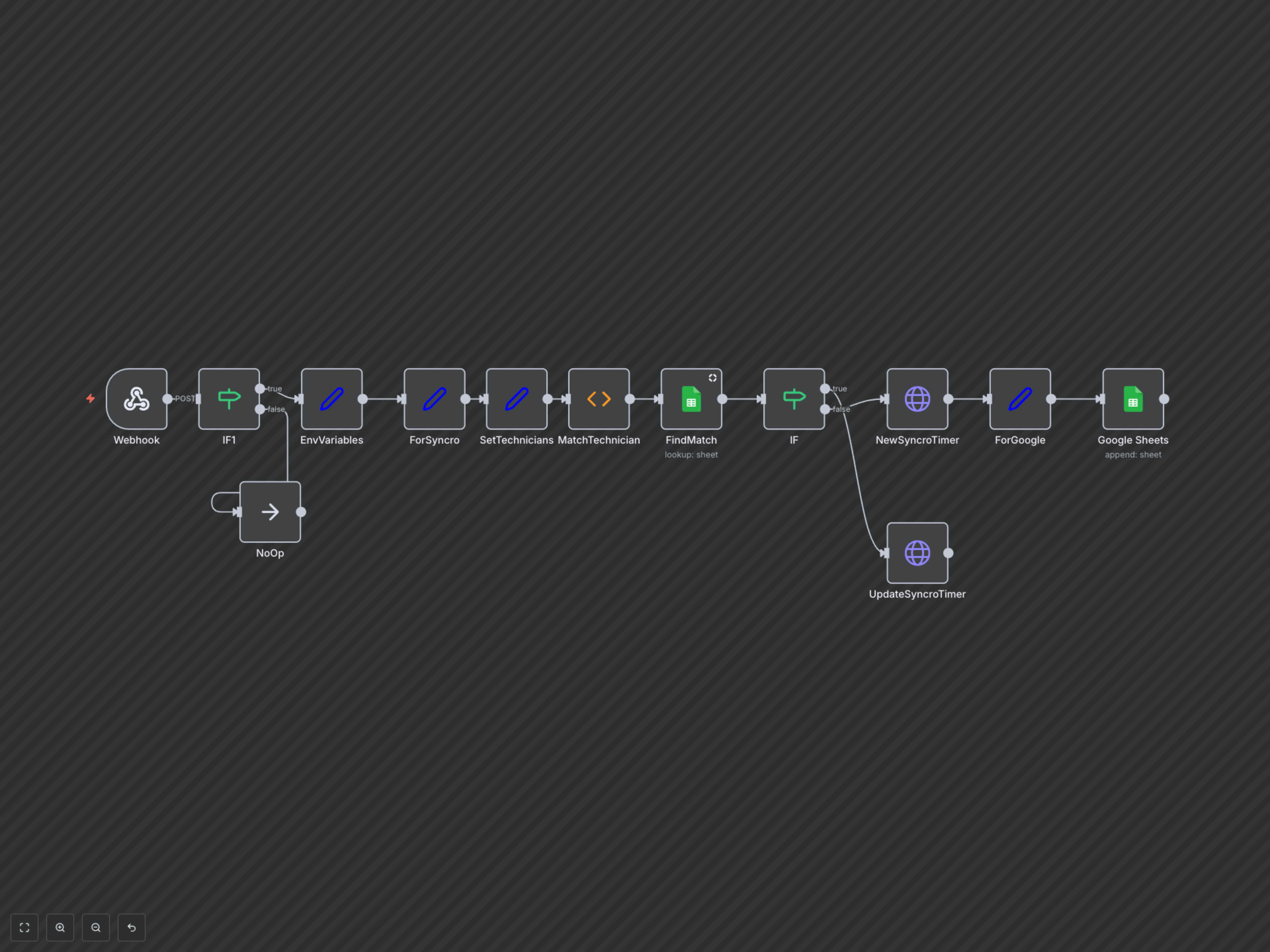
1. Trigger: The workflow is activated by a webhook whenever a new or updated time entry is logged in Clockify. 2. Filter: It first verifies if the time entry is associated with a project name containing "Ticket" to ensure relevance. 3. Extract Ticket ID: The Syncro ticket ID is extracted from the Clockify project name. 4. Map Technician: The Clockify user is mapped to a predefined Syncro technician ID. 5. Check for Duplicates: The workflow queries a Google Sheet to see if the Clockify time entry ID has already been recorded (meaning it's already in Syncro). 6. Create or Update: If existing, the corresponding Syncro timer entry is updated with the latest time interval and description. If new, a new timer entry is created in Syncro for the extracted ticket ID. 7. Log Entry: For new entries, the Clockify ID and the newly created Syncro timer ID are recorded in the Google Sheet for future lookups, preventing duplicates.