
Automate Gmail Invoice Processing to Drive & Sheets with AI
Automatically process incoming invoices in real-time, reducing manual data entry by 100% and saving hours of administrative work weekly.
Manually processing incoming invoice emails, downloading attachments, organizing them in Drive, and transcribing data to spreadsheets is time-consuming and prone to errors. This workflow automates the entire process, capturing unread Gmail invoices, storing them in Google Drive, and intelligently extracting crucial data with AI for instant logging into Google Sheets, eliminating manual entry.



Documentation
Automate Invoice Processing with AI
This powerful n8n workflow revolutionizes how your business handles incoming invoices. It seamlessly integrates your Gmail, Google Drive, and Google Sheets, leveraging cutting-edge AI to automate the entire invoice management lifecycle from reception to data entry.
Key Features
- Automated Invoice Capture: Monitors your Gmail for unread invoice emails with attachments.
- Intelligent Document Management: Automatically saves and renames PDF invoices in a designated Google Drive folder.
- AI-Powered Data Extraction: Utilizes OpenAI and LangChain to accurately extract key details like invoice date, description, and total price from PDFs.
- Real-time Reconciliation: Instantly logs all extracted invoice data into your Google Sheets for easy tracking and reconciliation.
- Streamlined Workflow: Marks processed emails as read to prevent duplicates and maintain an organized inbox.
How It Works
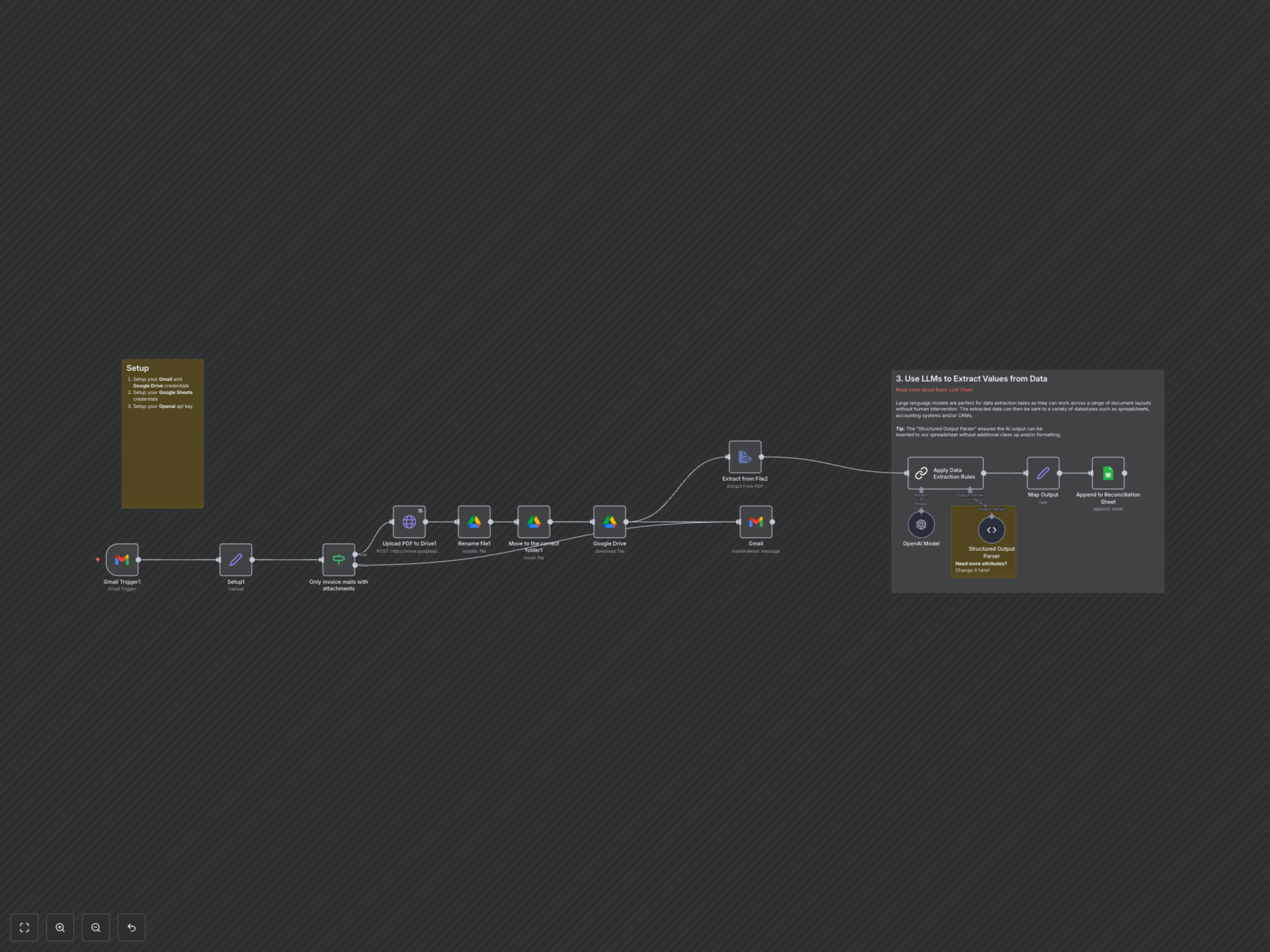
The workflow starts with a Gmail Trigger that monitors for unread emails containing attachments. An If node ensures only relevant emails are processed. Next, a Set node initializes a variable for your Google Drive folder ID. The workflow then uses an HTTP Request to upload PDF attachments directly to Google Drive. This file is immediately renamed using the email subject and current date, and then moved to your specified invoice folder. To extract data, the workflow first downloads the newly moved file from Google Drive, then uses Extract from File to convert the PDF content into text. This text is passed to an Apply Data Extraction Rules node (powered by OpenAI Model and Structured Output Parser) which intelligently extracts predefined invoice details like date, description, total price, and creates a hyperlink to the document in Drive. Finally, these extracted, structured data points are mapped and appended as a new row to your designated Google Sheet, and the original email in Gmail is marked as read to maintain inbox hygiene.