
Automate Splunk Alerts to Unique Jira Tickets, Prevent Duplicates
Automatically create and update Jira tickets for Splunk alerts, reducing manual triage time by up to 90% and eliminating duplicate incident reporting.
Security teams are overwhelmed by manual Splunk alert processing, leading to duplicate Jira tickets and inefficient incident response. This workflow automatically converts Splunk alerts into unique Jira tickets, updating existing ones with new comments to streamline SecOps and improve response times.



Documentation
Automate Splunk Alerts to Unique Jira Tickets
Security teams often face the challenge of managing a high volume of Splunk alerts, which can lead to manual overload and duplicate entries in incident tracking systems like Jira. This n8n workflow provides a robust solution by automatically processing Splunk alerts, creating new Jira tickets for unique incidents, and appending new alert details as comments to existing tickets.
Key Features
- Automated Alert Ingestion: Seamlessly receive Splunk alerts via a dedicated webhook, initiating immediate processing.
- Duplicate Prevention: Intelligent hostname normalization and Jira search ensures that new tickets are only created for truly unique incidents.
- Contextual Updates: For existing incidents, new Splunk alerts are appended as comments to the relevant Jira ticket, keeping all information consolidated.
- Streamlined SecOps: Significantly reduces manual effort in triaging and managing security alerts, allowing teams to focus on resolution.
- Custom Field Support: Automatically populates a Jira custom field with the normalized hostname for easier tracking and searching.
How It Works
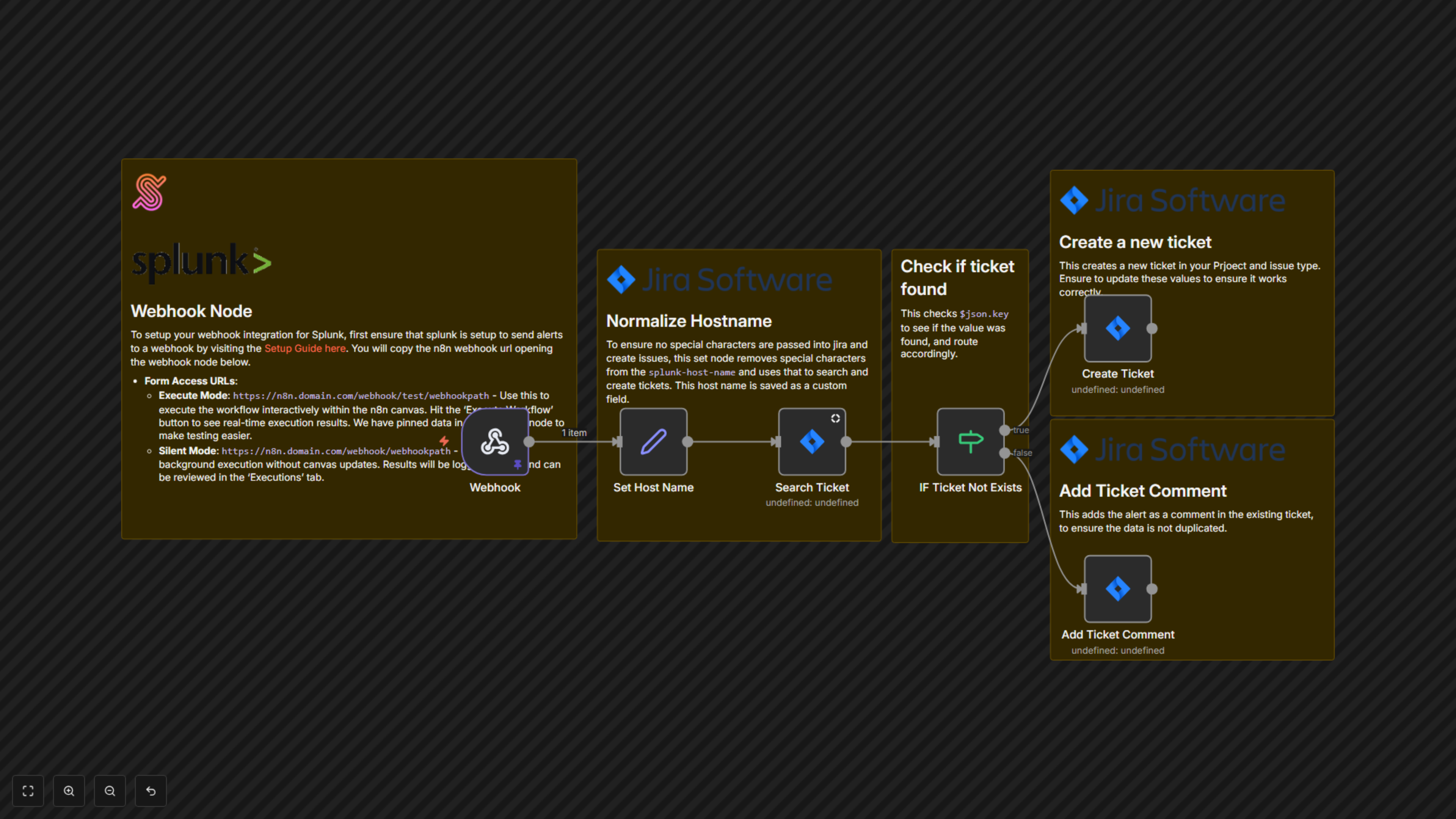
The workflow begins with a Webhook node, configured in Splunk to receive security alerts. The incoming alert payload is then processed by a Set Host Name node, which normalizes the hostname by removing special characters, ensuring compatibility with Jira's search and custom fields. Next, a Search Ticket node queries Jira for existing tickets associated with the normalized hostname. An IF Ticket Not Exists node then evaluates the search results: if no matching ticket is found, a new Jira ticket is created with a detailed summary and description, including the normalized hostname in a custom field. If a matching ticket is found, an Add Ticket Comment node updates the existing Jira ticket with the latest alert details, preventing duplicate issues and keeping all incident information in one place.